
How to Cancel OnlyFans Subscription (Stop Auto-Billing)
OFExplorer Team
Published: Jul 13, 2026 • 4 min read
If you are wondering how to cancel onlyfans subscription to stop your credit card from being charged every month, you are not alone. It is one of the most common questions among users who want to take a break or stop supporting a specific creator.
The good news is that learning how to cancel onlyfans subscription is incredibly easy. Whether you are using a computer or your mobile phone, you can stop the auto-renewals in just a few clicks.
In this guide, we will walk you through exactly how to cancel an onlyfans subscription step-by-step, and answer common questions about refunds and access.
How to Cancel Subscriptions on OnlyFans (Step-by-Step)
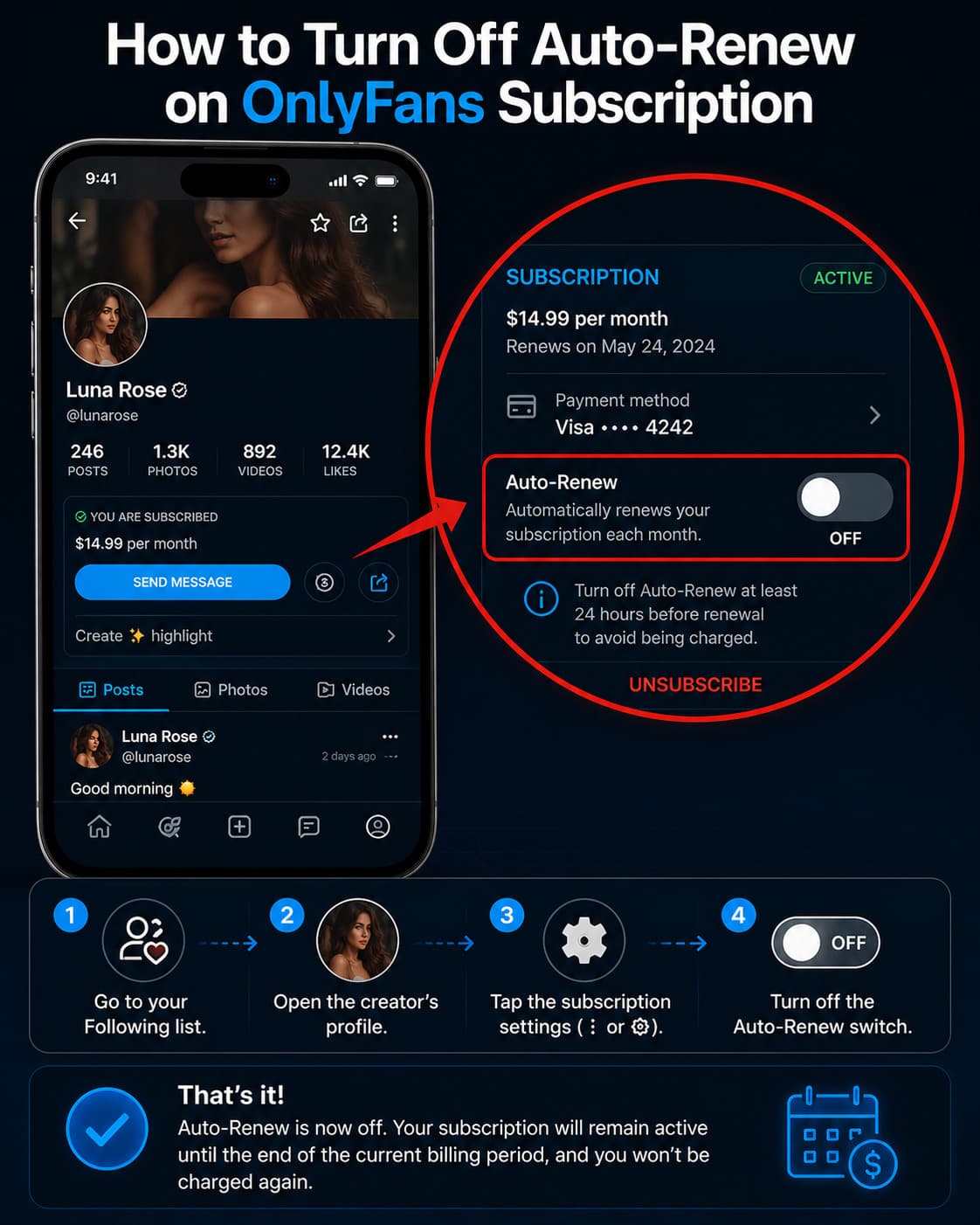
The process to stop your payments is identical whether you are on a desktop browser or using Safari/Chrome on your phone (since OnlyFans does not have a native app).
Here is the fastest way to do an onlyfans cancel subscription action:
- Log in to your account: Go to OnlyFans.com and log in with your credentials.
- Go to your Following list: Click on your profile icon and navigate to the Following tab to see a list of all your active subscriptions.
- Select the creator: Click on the profile of the creator you wish to unsubscribe from.
- Turn off Auto-Renew: On the creator's profile page, locate the Auto-Renew button (usually a toggle switch) and turn it off.
- Confirm cancellation: A prompt will appear asking you to specify a reason for leaving. You can select any reason or simply skip it. Once confirmed, the auto-renew will be disabled.
Congratulations! You have successfully learned how to unsubscribe onlyfans creators.
What Happens When You Cancel an OnlyFans Subscription?
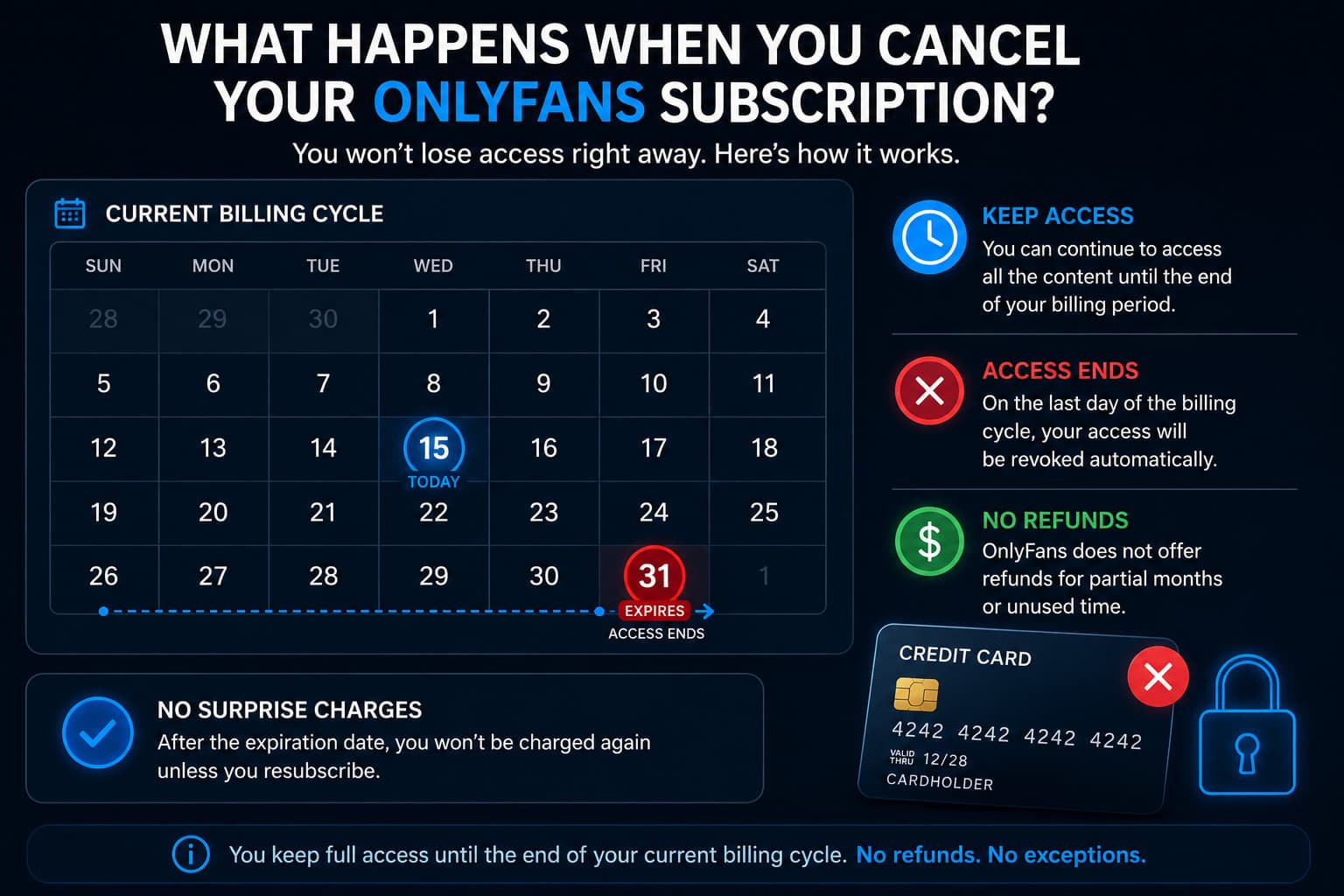
When you toggle off the auto-renew feature, your subscription is not immediately terminated. Instead, it is set to expire at the end of your current billing cycle.
- You retain access: You will still be able to see the creator's content, send messages, and unlock PPV content until the final day of your paid month.
- No more charges: Once that expiration date hits, your access will be revoked and your credit card will not be billed again for that specific creator.
Can I Get a Refund After Canceling?
OnlyFans has a very strict "No Refunds" policy. If you forget to cancel your subscription and your card is charged for another month, you generally cannot get your money back. The platform considers all transactions final.
This is why it is highly recommended to turn off auto-renew immediately after subscribing if you only intend to stay for one month.
Are You a Creator Losing Subscribers? (2026 Retention Strategies)
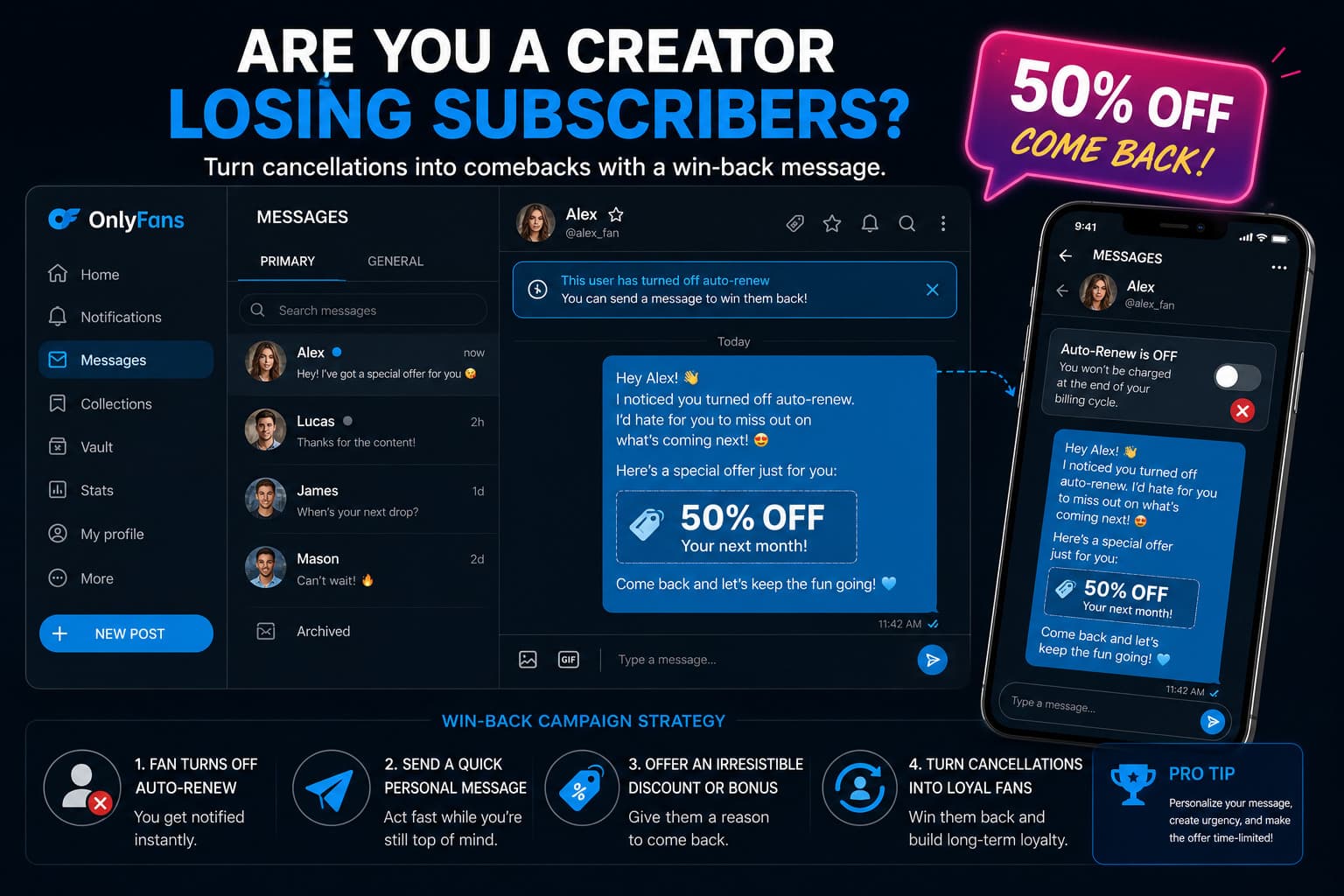
If you arrived at this page not as a fan, but as a creator trying to figure out why everyone is hitting the "cancel" button on your profile, you need to update your strategy. In 2026, the churn rate (cancellation rate) is higher than ever due to market saturation. Here is how top agencies retain fans:
- The "Win-Back" Campaign: Do not let a canceled subscriber leave silently. When a fan turns off auto-renew, they still have access until the end of the month. Send them a personalized DM offering a heavy discount (e.g., 50% off a 3-month bundle) or a free exclusive video if they turn auto-renew back on.
- Protect Your "Whales": Data from 2026 shows that 80% of a creator's revenue comes from just 20% of their top fans (the "Whales"). Identify who is tipping and buying PPVs, and give them hyper-personalized attention. If they feel a genuine connection, they will never cancel.
- Pattern Interruption: Fans cancel when they get bored. If you only post mirror selfies, they will leave after a month. Break the pattern with live streams, behind-the-scenes vlogs, or interactive Q&A sessions.
How to Delete Your Account vs Canceling a Subscription
It is important to note the difference between canceling a subscription and deleting your account entirely.
- Canceling a subscription stops payments to one specific creator, but keeps your account active.
- Deleting your account permanently wipes your profile, credit card information, and immediately removes your access to all creators without refunds.
By managing your active subscriptions directly from your "Following" tab, you stay in complete control of your finances.